Introduction
The LFG Node Dashboard is a streamlined platform designed to provide a comprehensive overview of your nodes. It enables users to efficiently manage node operations and workloads as well as track rewards, all within a single interface. With features like real-time updates and email notifications, the dashboard ensures you stay informed and in control of your node activities.
Prior Knowledge
Before using the dashboard, it’s helpful to be familiar with:
- Nodes: Understand the basics of nodes and how they contribute to a Blockchain Network. To learn more, visit What is a Node? article.
- LFG Node FAQs: Review common questions about LFG Nodes for additional context.
- LFG Node CLI Hardware Requirements: Ensure your system meets the necessary hardware specifications. For full details, refer to the hardware requirements article.
Overview of Dashboard Features
Headers Section

The Headers Section provides access to essential features and tools that ensure efficient navigation and monitoring on the Node Dashboard. Here's a breakdown of its components:
| Feature | Description |
| Dashboard Tab | Provides access to the main dashboard, where you can monitor node performance and workloads. |
| Inventory Tab | Accesses the Inventory section to track accumulated rewards for specific node projects. |
| Downloads Dropdown | Provides quick access to resources and instructions for downloading and running the software. |
| Notifications (bell) Icon | Opens the Notifications Panel to set up email alerts and view real-time updates on node status. |
| Wallet Address | Displays the connected wallet address with options to view or switch wallets. |
| Timer | Shows the countdown to the next node cycle reset. Each cycle lasts 24 hours and resets daily at 2:00 AM UTC. |
Stats Section

The stats section provides a quick overview of your nodes, giving you detailed information on the following:
| Category | Description |
|---|---|
| Node Licenses | Displays the node licenses you own. |
| Network | Shows which Blockchain Network the Node license is on. |
| Workload Online | Displays how many workloads are currently running versus how many are available for use. |
| Workloads on Network | Displays the total number of workloads running across the entire network. |
| Purchased Licenses | Tracks how many licenses you own. |
Node Section

The node section gives a detailed view of each node’s performance, status, and workloads. This section allows you to monitor specific node details and track workload activity.
Node Details
| Field | Description |
| Node Name | This is the alias users create when adding the node to their dashboard for easy tracking. |
| Node Version | Shows the version of the software the node is running. |
| Node Last Seen | Indicates the last time the node was active. |
| Operating System | Displays the OS on which the node is running. |
| Status | Reflects whether the node is online or offline. |
| Edit Button | Allows you to rename the Node. |
| Delete Button | Lets you remove the node from the dashboard. |
Workload Monitoring
| Field | Description |
| Workload Name | Identifies the name of the specific workload running on the node. |
| Workload Version | Shows the version of the workload software. |
| Status | Indicates whether the workload is active or offline. |
| Restart Button | Allows you to quickly restart the workload. |
| Workload Last Seen | Displays the last time the workload was active. |
| Online Today | Tracks the time the workload has been online today. |
| Online Yesterday | Displays the workload's online duration for the previous day. |
Additional Functionalities
| Feature | Description |
| Add Node Button | Quickly adds new nodes to the dashboard. |
Node Inventory
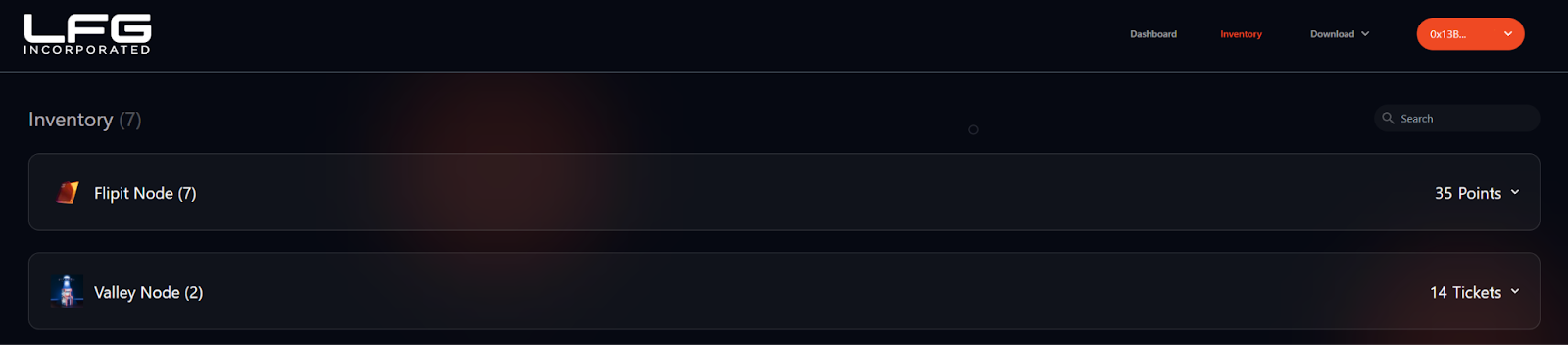
The Inventory focuses on tracking rewards for projects with a reward-based system, such as points, tickets, or other mechanisms. This dashboard also allows users to track rewards earned prior to the Token Generation Event and is designed to adapt as new projects and reward structures are introduced.
Once in the Inventory, the right-hand panel provides a clear overview of the total accumulated rewards for each project.
Project-Specific Details
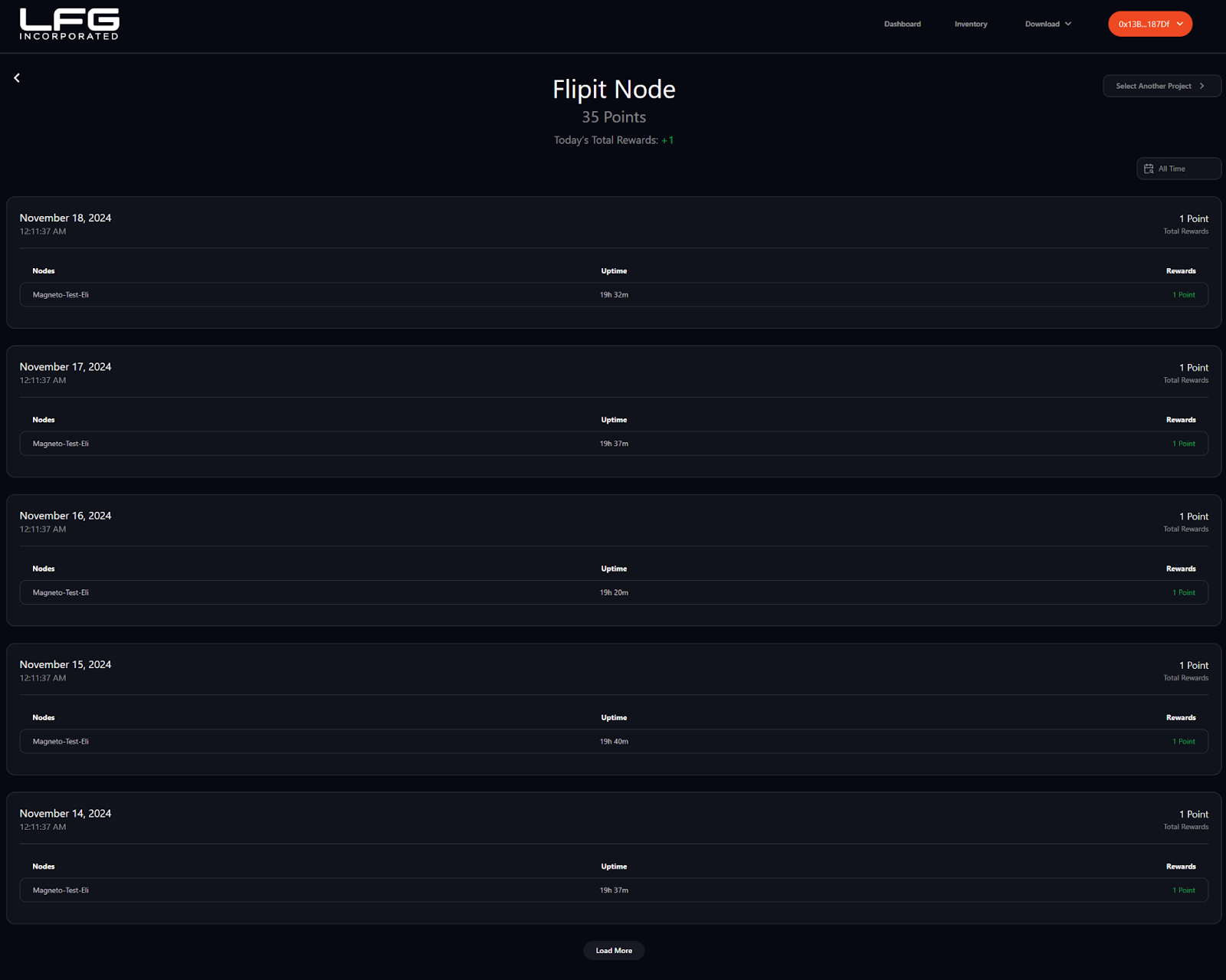
Clicking on a specific project reveals detailed information for each date, including:
- Specific node details.
- Node uptime.
- Daily rewards.
It’s important to note that not all node projects will use the LFG Node System in the same way. While many projects support point tracking, others may have unique tracking systems and uptime requirements. Users should review the specific details of the projects they are supporting for more information.
Filtering Options
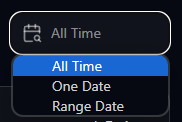
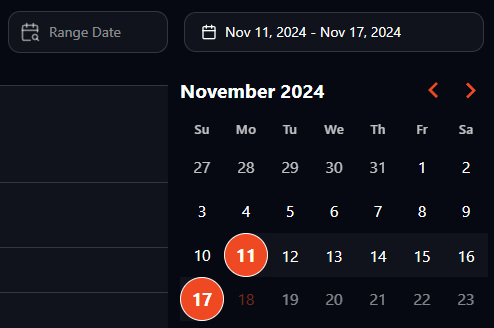
Users can filter data by selecting specific dates or date ranges from the upper-right corner of the page. A dropdown menu allows filtering by "All Time," "One Date", or "Range Date", with a calendar view for selecting the desired timeframe.
This feature helps users verify rewards or activity on specific dates for accurate tracking and management.
Email Notifications Setup
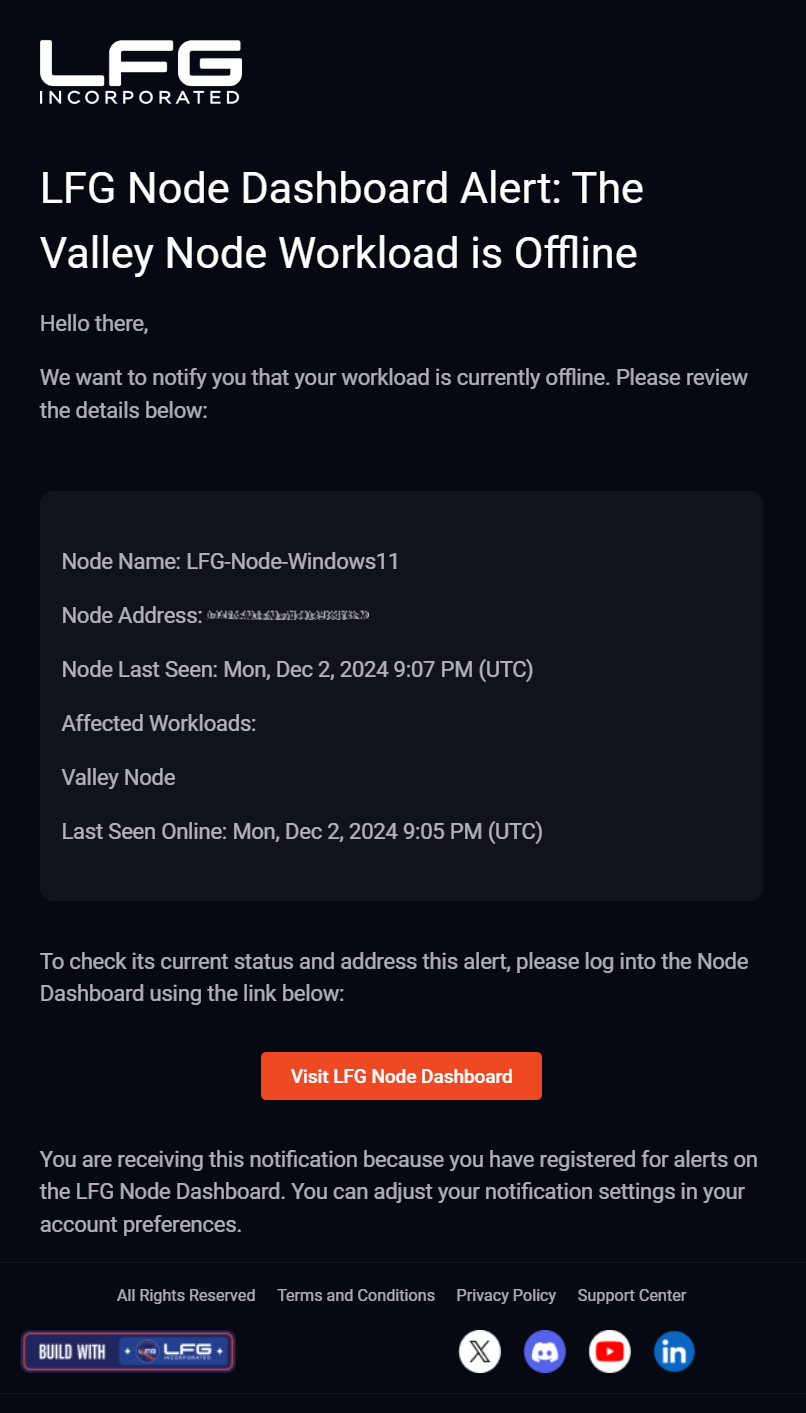
The LFG Node Dashboard includes email notifications to help users stay updated on their nodes’ uptime. By enabling this feature, users can receive real-time alerts about node activity, including status changes like downtime or restored connectivity.
Here’s how to set it up:
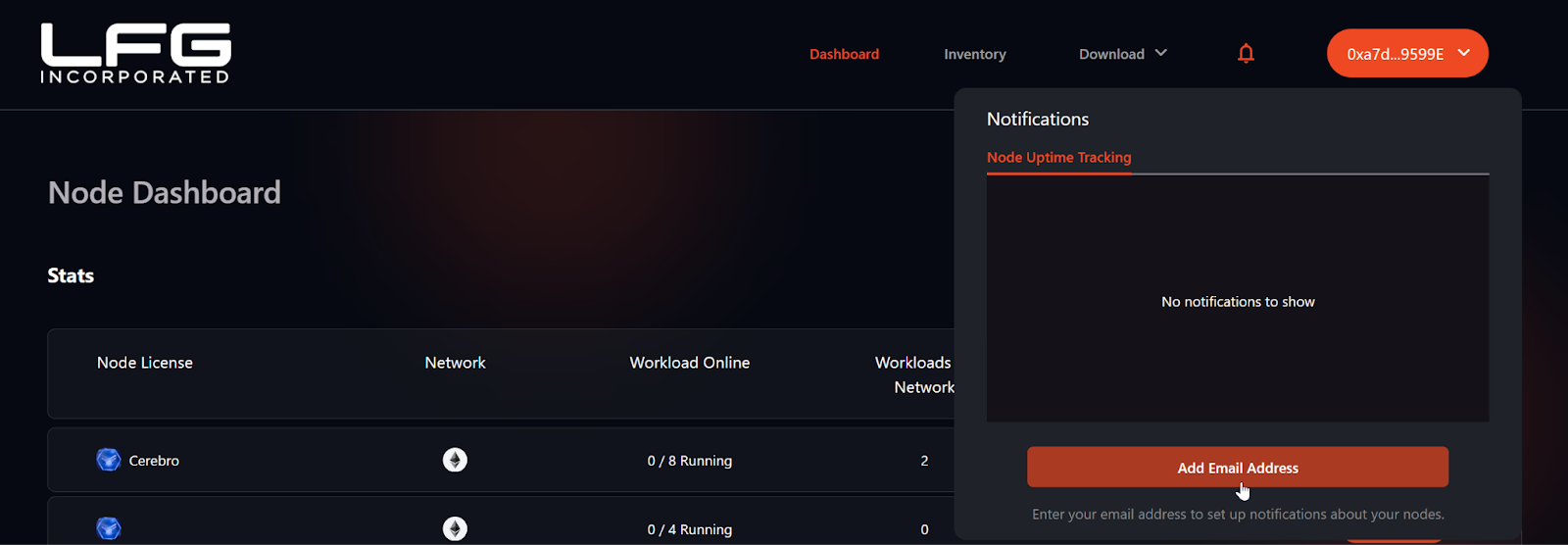
1) On the Node Dashboard, click the bell icon in the top navigation bar.

This will open the Notifications panel, click the Add Email Address button.
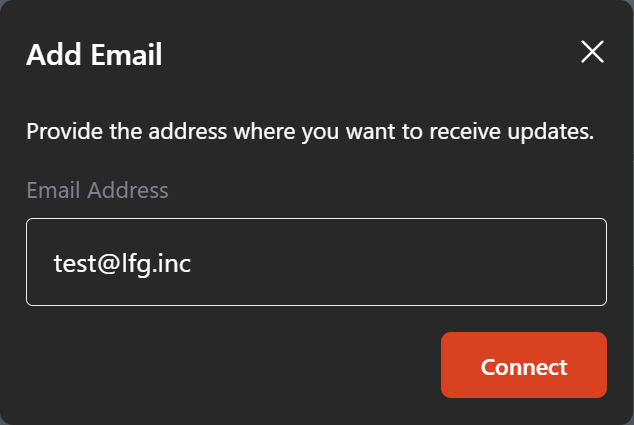
2) Enter your email address in the provided field. Click Connect to proceed.
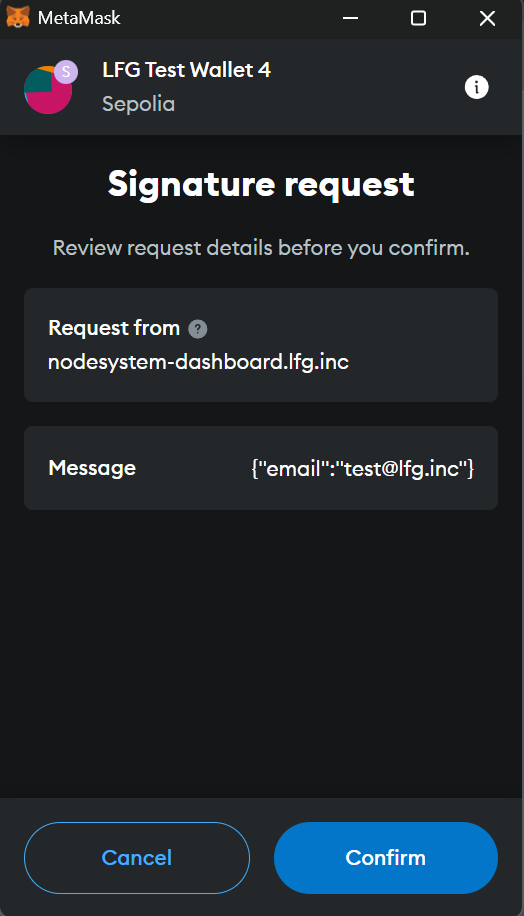
3) A MetaMask wallet signature request will appear to verify your email address.Review the request details, then click Confirm.
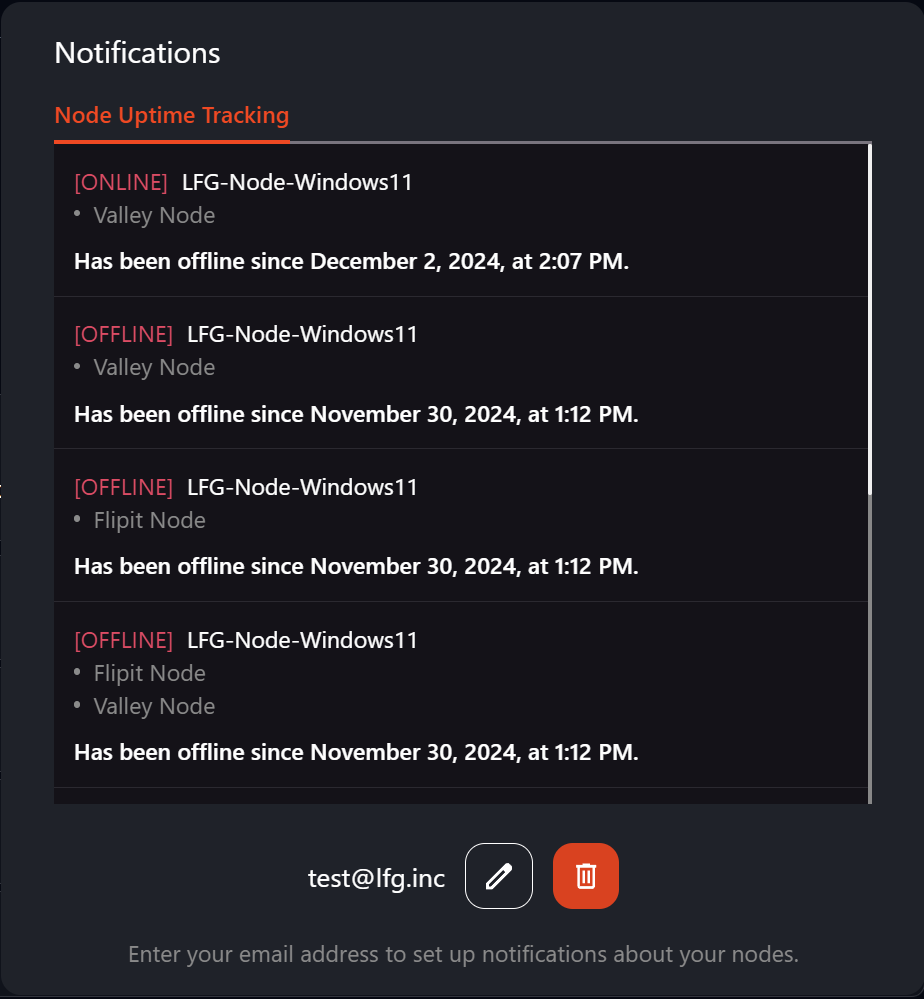
4) Once the setup is complete, you’ll begin receiving email notifications about your node’s uptime status. These alerts ensure you’re informed of any changes that require your attention.
Conclusion
The LFG Node Dashboard provides a streamlined way to manage your nodes, monitor workloads, and track rewards. This dashboard ensures you have everything you need to efficiently manage and monitor your nodes in one convenient place.
Thanks for the feedback.